
How to Speed Up Your Computer Without Buying New Hardware

Most of the slow computers that land on my workbench are not dying. They are tired, cluttered, and overworked by software their owners forgot they ever installed. After years of repairing desktops and laptops for homes, small offices, and the occasional panicked student the night before a deadline, I can tell you this honestly: when people ask me how to speed up your computer, they usually expect me to sell them a new one. Most of the time, I send them home with the same machine and a much better experience.
This guide shows how to speed up your computer the way I actually do it at the bench. No miracle tools, no “boost your PC 300 percent” promises. Just the checks and fixes that work, in the order I do them, for both Windows and Mac.
Why Your Computer Speed Drops Over Time
A computer rarely slows down because its processor “wears out.” Chips do not get slower with age. What changes is everything around them.
Over a few years, a typical machine collects dozens of programs that launch at startup, browser extensions nobody remembers adding, a storage drive packed close to full, outdated drivers, and a cooling system choked with dust. Each issue on its own costs a little speed. Stacked together, they turn a capable machine into something that takes two minutes to open a spreadsheet.
There is also software growth to consider. Operating systems, browsers, and apps get heavier with every update, and many now bundle AI features that lean harder on your hardware. If you are curious why, this plain English explainer on how AI works is a good place to start. A laptop that felt snappy when you bought it is now running software designed for newer machines. You cannot stop that trend, but you can take away the extra weight that you control.
The good news is that almost all of those causes can be fixed for free.
Diagnose Before You Speed Up Your Computer
Any honest lesson on how to speed up your computer starts with finding the real problem. The biggest mistake I see is people running a cleanup tool without knowing what is actually wrong. That is like changing your car’s oil because the brakes squeak. Spend five minutes finding the bottleneck first, and every fix after that becomes targeted.
Checking Computer Speed on Windows
Press Ctrl + Shift + Esc to open Task Manager. Click the Performance tab and look at four things: CPU, Memory, Disk, and GPU.
Here is how I read it:
- CPU pinned near 100 percent while you are doing almost nothing usually points to a runaway process, a background update, or malware.
- Memory constantly above 85 to 90 percent means your system is starting to lean on the much slower storage drive to make up the difference.
- Disk sitting at 100 percent is the classic sign of an older spinning hard drive struggling, or a drive that is close to full.
- Everything looks calm but the machine still feels sluggish often points to heat, a failing drive, or a driver problem.
Then switch to the Processes tab and sort by CPU, then by Memory. Whatever sits at the top is your first suspect.
Checking Computer Speed on a Mac
Open Spotlight with Command + Space and type Activity Monitor. The tabs across the top work much like Task Manager. The Memory tab is where I spend most of my time on Macs, because of the Memory Pressure graph at the bottom. Green is healthy. Yellow and red mean the Mac is under strain. The Swap Used figure shows whether your Mac is copying too much data between physical memory and the drive’s swap file, which is a sign that memory is running short.
If one app is eating a huge share of CPU when it should be idle, something may be wrong with it, and quitting it is often the fastest fix.
Write down what you find. It will guide everything below.
How to Speed Up Your Computer in the First Ten Minutes
These are the quick wins. I do them on nearly every machine, and they often solve the problem before I ever reach for anything more involved.
Restart Properly
This sounds too simple, but it fixes more than people expect. Many folks have not truly restarted their machine in weeks. On Windows, there is a catch: clicking Shut down with Fast Startup enabled does not fully reset the system the way you might think. It saves part of the system state to make the next boot quicker. Choosing Restart from the power menu gives you a genuinely clean start. Make it a weekly habit, ideally as part of your Monday morning routine.
Cut the Startup Programs
Every app that launches at boot steals memory and processor time before you even open a document. On a typical client machine, I find eight to fifteen programs launching automatically, and the owner needs maybe three of them.
On Windows, open Task Manager and go to the Startup apps tab. Look at the Startup impact column. Disable anything rated High that you do not need the moment the computer turns on, such as game launchers, music apps, chat apps you rarely use, and manufacturer “helper” utilities. The same goes for productivity apps you only open once a week. Disabling does not delete the program. It just stops it from launching itself.
On a Mac, go to System Settings, then General, then Login Items. Remove anything under “Open at Login” that you do not need right away, and review the items allowed to run in the background.
A rule I follow: never disable something you cannot identify without looking it up first. Security software and audio or touchpad drivers usually need to stay.
Update the System and Drivers
Updates are not just security patches. Microsoft notes that Windows updates often include fixes and performance improvements, and that optional driver updates are worth checking as well. In Windows, go to Settings, then Windows Update, and check for updates. Then look under Advanced options for Optional updates, where newer drivers often sit.
For graphics drivers, I prefer getting them straight from the maker of the graphics chip or the laptop manufacturer. On a Mac, check System Settings, then General, then Software Update.
Reclaim Storage to Speed Up Your Computer
If you only remember one thing about how to speed up your computer, make it this: free space matters. A nearly full drive is one of the most common causes of slowdown I see. The operating system needs room to manage temporary files, virtual memory, and updates. When that room disappears, everything drags. Microsoft states plainly that low disk space can reduce system performance.
My own rule from the bench: keep at least 15 to 20 percent of your main drive free. On a 256 GB laptop, that means roughly 40 to 50 GB of breathing room.
Let Windows Do the Heavy Lifting
Windows has a built in tool called Storage Sense. It can automatically free up space by removing items you do not need, like temporary files and items in your Recycle Bin. Something many people do not realize is that Storage Sense is off by default, so turn it on under Settings, then System, then Storage, and set it to run on a schedule.
While you are on that Storage page, look at the category breakdown. It shows you exactly where the space went. In my experience, the usual culprits are:
- The Downloads folder, full of installers used once and forgotten.
- Old phone backups and photo libraries.
- Games that have not been played in a year.
- Duplicate video files.
Uninstall What You Do Not Use
Go to Settings, then Apps, then Installed apps, and sort by size or by install date. Remove trial software, preinstalled bloatware, and old programs you have replaced. On a Mac, check the Applications folder and the storage overview under System Settings, then General, then Storage, which includes handy recommendations.
If you have files you want to keep but rarely open, move them to an external drive or cloud storage. That alone has rescued many of the laptops that came through my shop.
Tame Your Browser to Improve Computer Speed
For many people, figuring out how to speed up your computer really means figuring out how to speed up the browser. It is usually the heaviest program on the machine. Twenty open tabs can consume more memory than every other app combined. When a client tells me the computer is slow “only when I’m online,” the browser is almost always the answer. That is especially true for people following common remote work tips who keep email, chat, and project tools open in tabs all day.
Turn On Memory Saving Features
Google Chrome has a Performance section in its settings. With Memory Saver turned on, Chrome deactivates tabs you are not currently using to save memory and help active tabs run smoothly. You can also add sites you want to keep active at all times, like an email or work dashboard. Microsoft Edge has a similar feature called sleeping tabs, and Safari manages background tabs on its own fairly well.
Audit Your Extensions
Extensions run constantly in the background, and some of them are poorly made or quietly collect data, which is one more reason to learn how to protect your privacy online. Go to your browser’s extension page and remove anything you do not recognize or have not used in a month. I regularly find coupon tools, toolbars, and “PDF converters” that were bundled with other software and never invited.
Clear Out the Clutter
Clearing your cache once in a while helps when sites behave strangely, though it is not a daily task. The bigger habit is closing tabs you are not using. Bookmark them, or use your browser’s reading list. Your memory will thank you.
Remove Malware and Fake Optimizer Software
No guide on how to speed up your computer is complete without a security check. Malware is still a real cause of slowdowns, especially crypto mining scripts and adware that run silently in the background. On Windows, open Windows Security, go to Virus and threat protection, and run a full scan. If you suspect something stubborn, run the Microsoft Defender Offline scan from the same menu. It restarts the machine and scans before Windows fully loads, which catches threats that hide while the system is running.
Here is something I tell every client: be very cautious with “PC cleaner” or “Mac optimizer” programs, especially ones advertised in popups. A large share of the slow machines I repair have one or more of these installed, and many of them cause more problems than they solve. They run constantly, nag you with scary warnings, and push paid upgrades. Your operating system already includes the tools you need. If you must use a third party utility, choose a well known one and uninstall it when the job is done.
Adjust Visual Effects and Power Settings for Computer Speed
Turning down the eye candy is one of the easiest lessons in how to speed up your computer. Modern operating systems spend resources on animations, shadows, and transparency. On a powerful machine, you never notice. On an older or budget laptop, turning them down makes the system feel noticeably more responsive.
Visual Effects on Windows
Click Start and type “Adjust the appearance and performance of Windows.” Open it, choose “Adjust for best performance,” and then turn back on “Smooth edges of screen fonts” so text stays readable. You lose some polish, but menus and windows open faster.
Power Mode
Laptops ship in balanced or battery saving modes that hold back the processor. In Windows, go to Settings, then System, then Power and battery, and set Power mode to Best performance when you are plugged in. Keep in mind the tradeoff. Microsoft points out that selecting Best performance increases power consumption, so your battery will drain faster if you leave it that way unplugged.
On a Mac laptop, check System Settings, then Battery, and make sure Low Power Mode is not switched on when you need full speed. You can also reduce motion and transparency under System Settings, then Accessibility, then Display. It helps on older Intel based Macs especially.
Check Your Drive Before It Drags Computer Speed Down
If your storage drive is failing, even the best advice on how to speed up your computer will not help. A failing drive is one of the quiet causes of slowness that most guides skip. When a drive starts developing bad sectors, it retries reads over and over, and the whole computer stutters. I have seen machines where every other fix did nothing because the drive itself was on its way out.
Signs Your Drive May Be Struggling
- Random freezes lasting several seconds, then everything catching up.
- Clicking or grinding sounds from an older hard drive.
- Files that take forever to open or fail to open.
- Disk usage stuck at 100 percent with nothing heavy running.
On Windows 11, you can check basic health for many NVMe solid state drives under Settings, then System, then Storage, then Advanced storage settings, then Disks and volumes, and open the drive’s Properties. On a Mac, Disk Utility’s First Aid feature can check and repair file system errors.
If your drive shows warnings, back up your files immediately. That is not a speed tip anymore. That is a data rescue tip.
Optimize, but Know Your Drive Type
Microsoft recommends optimizing drives as a way to improve performance. Search for “Defragment and Optimize Drives” in the Start menu. Windows recognizes whether you have a traditional hard drive or a solid state drive and handles each correctly. Traditional drives get defragmented, while solid state drives receive a TRIM command instead. Do not use old third party defrag tools on a solid state drive. It adds wear without any benefit.
Heat: The Silent Computer Speed Killer
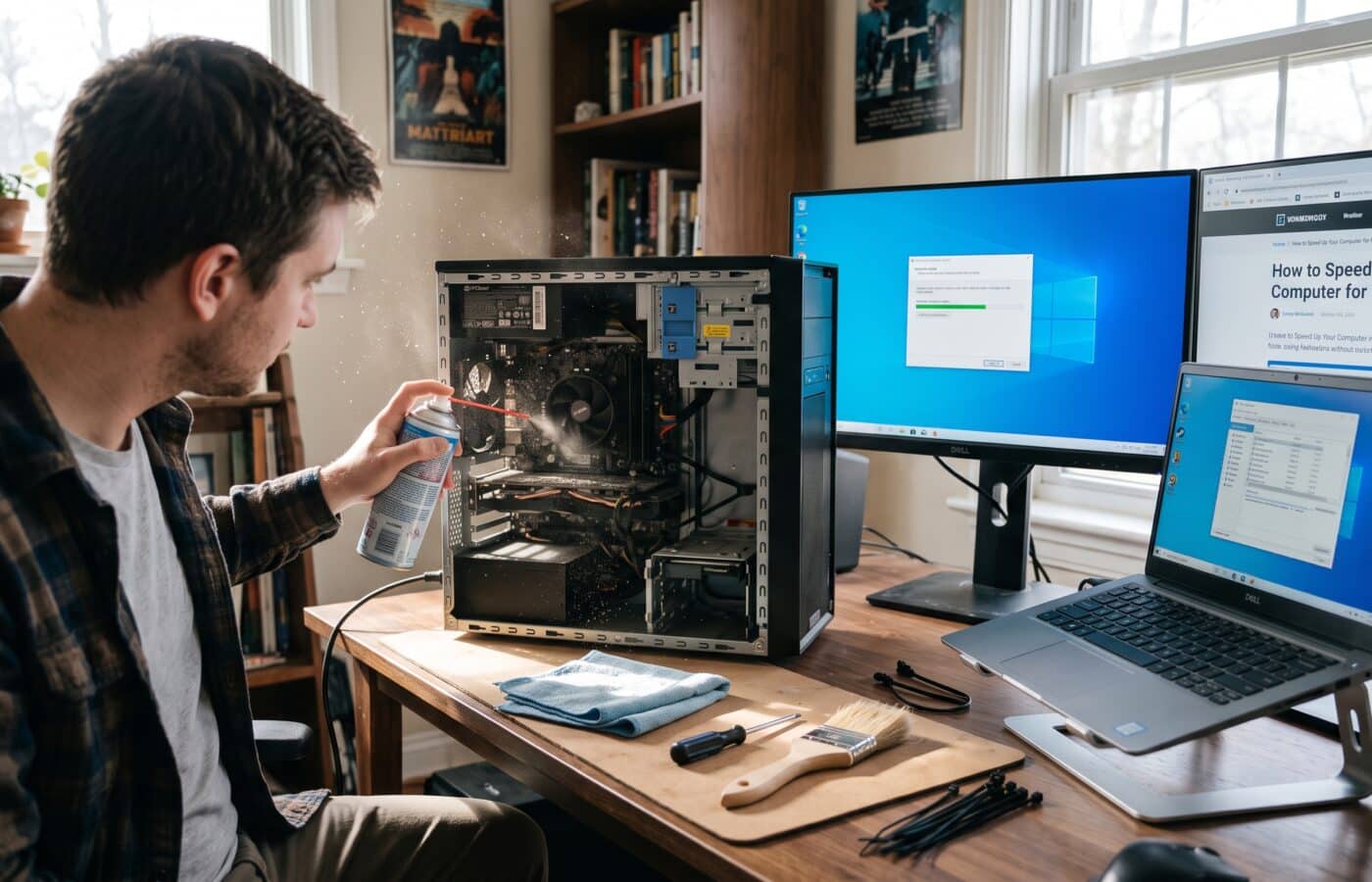
This is the part of the job that makes me feel more like a mechanic than a computer technician, and it is why learning how to speed up your computer sometimes means learning to clean it. When a processor gets too hot, it protects itself by slowing down. This is called thermal throttling, and it can cut performance dramatically without any error message.
The usual cause is dust. I have opened laptops where the cooling fins were packed with a felt like layer of lint so thick that air could barely move. The owner thought the computer was slow. In reality, it was suffocating.
What You Can Safely Do at Home
- Shut down and unplug the computer before any cleaning.
- Use short bursts of compressed air through the vents, holding the can upright. Hold the fan still with a finger or a soft tool so it does not overspin.
- Keep laptops on hard, flat surfaces. Beds, pillows, and blankets block the intake vents underneath.
- Give desktops room to breathe. A tower jammed against a wall or inside a closed cabinet will run hot.
When to Get a Professional Cleaning
If your fans roar constantly or the bottom of your laptop gets uncomfortably hot during light work, it may be time for a professional internal cleaning and fresh thermal paste. On machines older than four or five years, the paste between the processor and the cooler often dries out, and replacing it can bring temperatures down significantly. That is a service, not a hardware purchase, and it is often the cheapest real speed upgrade available.
When a Fresh Start Is the Best Way to Speed Up Your Computer
Sometimes a system has years of leftover drivers, broken registry entries, and half removed programs piled up. If you have done everything above and the machine still feels heavy, a clean reinstall of the operating system is the last word on how to speed up your computer without spending money. It can make an old machine feel close to new again.
On Windows, go to Settings, then System, then Recovery, and choose Reset this PC. The “Keep my files” option reinstalls Windows while preserving your personal files, though you will need to reinstall your apps. On a Mac, you can reinstall macOS through macOS Recovery without erasing your data, or do a full erase and clean install for a true fresh start.
Before any reset, I insist on two things with clients:
- A full backup of documents, photos, and anything irreplaceable, ideally in two places.
- A written list of the apps and license keys you will need to reinstall.
A reset is the most powerful free fix on this list. It is also the one where skipping preparation causes real regret.
The Maintenance Routine That Keeps Computer Speed High
Knowing how to speed up your computer once is good. Keeping it fast is better. Like most healthy habits, the trick is keeping it small and consistent. This is the simple routine I hand to clients when they pick up their machines. It takes about fifteen minutes a month.
Weekly
- Restart the computer properly.
- Close browser tabs you are not using.
Shutting down fully at the end of the workday also doubles as a simple way to keep healthy work-life balance boundaries.
Monthly
- Install pending system and app updates.
- Clear out the Downloads folder.
- Check startup apps for anything new that snuck in.
- Glance at storage and make sure you still have healthy free space.
Every Six Months
- Run a full security scan.
- Review installed apps and remove what you no longer use.
- Clean dust from vents with compressed air.
- Confirm your backups actually work by restoring a test file.
People who follow this routine rarely come back to me with speed complaints. They come back years later because they actually want a new computer, not because they need one.
Being Honest About Hardware Limits
I would not be doing my job if I pretended software fixes solve everything. There is a point where a machine simply does not have enough memory or has a slow spinning hard drive that holds it back. HP’s own guidance names 16 GB of RAM as the recommended minimum for everyday use in 2026, and a system with 4 GB will struggle with modern browsers no matter how well you tune it.
But here is the important part: understanding how to speed up your computer for free comes first. Work through this guide, and you will either solve the problem completely or know for certain where the limit is. That knowledge helps you save money every month, because you stop guessing and stop paying for upgrades that would not have helped. If you are starting a small business or launching a weekend side hustle, that matters even more, and it is worth building a realistic hardware budget into your business plan.
Final Thoughts on How to Speed Up Your Computer
Learning how to speed up your computer is less about secret tricks and more about steady, honest maintenance. Diagnose first. Cut the startup clutter. Free up storage. Rein in the browser. Remove anything malicious. Watch the heat. And when all else fails, start fresh with a clean system.
In my years at the bench, I have watched dozens of “hopeless” machines go back to their owners running smoothly with nothing more than the steps in this article. Your computer is probably not as old as it feels. It just needs someone to clear the path.
Frequently Asked Questions
What is the fastest way to speed up your computer?
Restart it properly, then disable unneeded startup programs in Task Manager or Login Items. Those two steps alone fix a surprising number of slow machines. Microsoft’s guide on improving PC performance in Windows walks through the core built in options.
Does deleting files speed up your computer?
It helps when your drive is close to full, because the system needs free space to work efficiently. Deleting files from a drive with plenty of free room will not change much. Windows users can automate cleanup with Storage Sense.
Why does my computer speed drop only when I browse the internet?
Your browser is likely using most of your memory, usually because of many open tabs or heavy extensions. Turning on Chrome’s Memory Saver and removing unused extensions typically makes a clear difference.
How do I find out what is slowing down my Mac?
Open Activity Monitor and check the CPU and Memory tabs, paying attention to Memory Pressure and Swap Used. This Macworld guide to Activity Monitor explains each view clearly.
Are cleaner apps a good way to speed up your computer?
In most cases, no. Many run constantly in the background and slow the machine down themselves. The tools built into Windows and macOS handle cleanup and monitoring well on their own.
Can overheating really slow down my computer?
Yes. When a processor gets too hot, it reduces its own speed to protect itself. Cleaning dust from the vents and keeping laptops on hard surfaces helps prevent this, as covered in HP’s guide to speeding up a slow PC.
References
- Microsoft Support. Tips to Improve PC Performance in Windows
- Microsoft Support. Manage Drive Space with Storage Sense
- Google Chrome Help. Personalize Chrome Performance
- HP Tech Takes. How to Speed Up a Slow PC: Quick Fixes and Long Term Solutions
- Macworld. How to Use Activity Monitor to Handle Troublesome Apps on Your Mac
- How To Geek. How to Monitor Your Mac’s Health with Activity Monitor
- Tom’s Guide. How to Enable Memory Saver in Google Chrome