
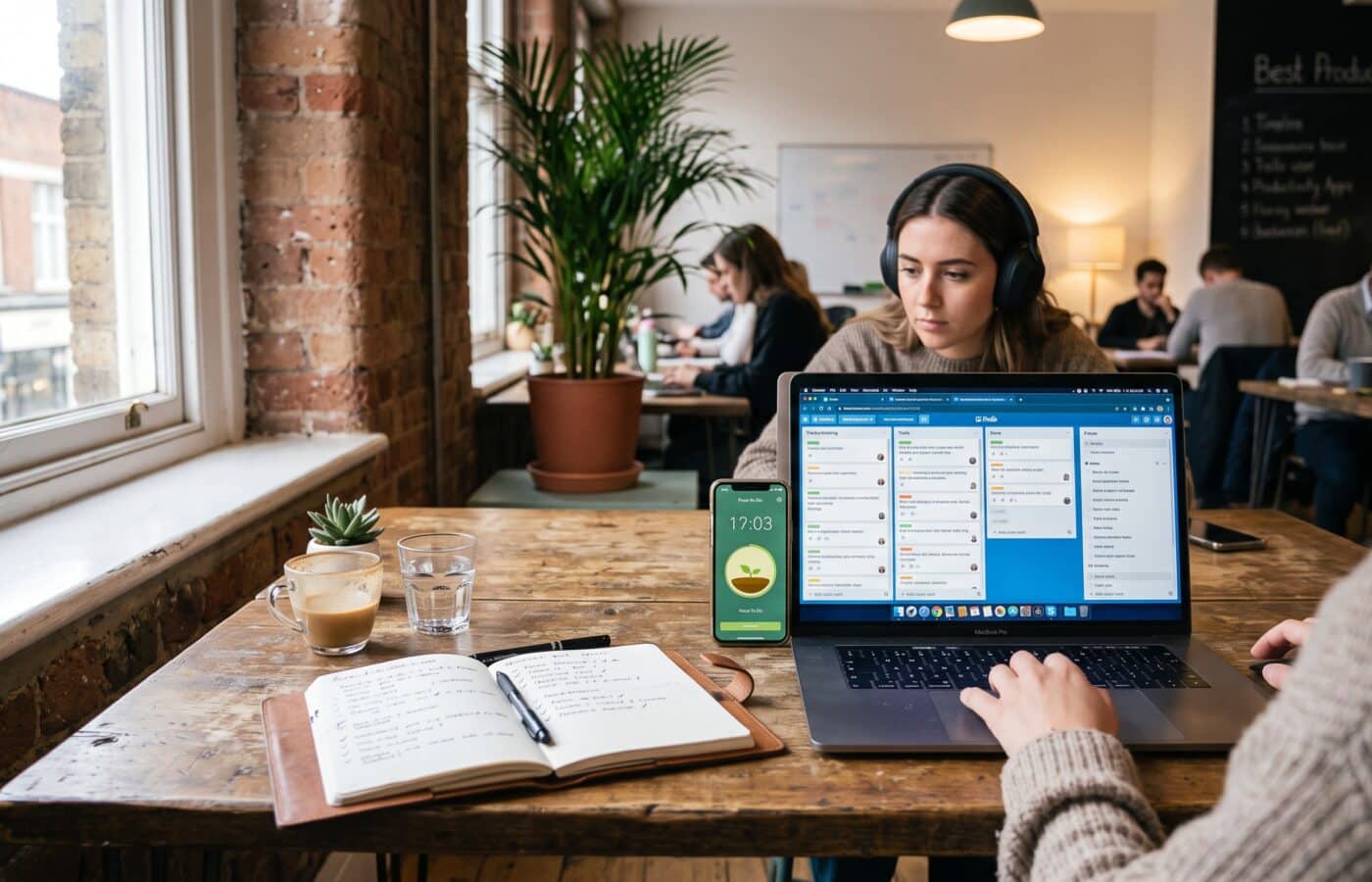
The Best Productivity Apps for Getting More Done in Less Time

Finding the best productivity apps should be simple, yet every few months someone sends me the same message. It usually reads something like, “I have six apps, three browser extensions, and a paper planner, and I still feel behind. What am I doing wrong?” After years of reviewing software for a living, I have a fairly consistent answer, and it rarely involves downloading something new.
We sat down for a long conversation about which tools are worth paying for, which ones quietly eat your afternoon, and how to build a setup that survives past the first enthusiastic week. What follows is that conversation, lightly edited for clarity.
Why Do So Many People Struggle to Find the Best Productivity Apps?
Let’s start with the obvious. There are thousands of these apps. Why is picking one so hard?
Because most people shop for features when they should be shopping for fit. A reviewer’s job is to look past the feature list, and the first thing you learn doing that is that a long feature list is often a warning sign. Every extra toggle is another decision you have to make before you get to the actual work.
The second problem is that people treat productivity like a single category. It isn’t. Managing tasks, capturing notes, protecting focus, and planning a calendar are four different jobs. An app that is brilliant at one is usually mediocre at the others. When someone asks me for “the best app,” I ask them back, “Best at what?”
So the question itself is flawed?
Not flawed, just incomplete. The best productivity apps are the ones that solve the specific problem slowing you down. Forgetting commitments points to a task manager. When your day gets hijacked by meetings, you need a calendar tool that defends your time. And if you lose an hour to your phone every afternoon, no task manager on earth will fix that. You need a blocker.
How Much Time Are We Actually Losing?
Is the problem really the apps, or is it just how modern work is?
Both, and the research on this is sobering. One study I come back to often was published in Harvard Business Review. The researchers followed 137 people on 20 teams at three Fortune 500 companies for as long as five weeks, and found they switched between apps and sites around 1,200 times a day, costing a bit under four hours each week just to get reoriented, which works out to about 9% of their working time.
Think about that for a moment. Nearly a tenth of the work year, gone to the mental cost of hopping between windows.
That’s a 2022 study. Has anything improved since?
If anything, it has gotten noisier. Microsoft published telemetry from its own software, and it showed that the average Microsoft 365 user gets interrupted by a meeting, an email, or a notification roughly every two minutes. That adds up to around 275 interruptions across a single working day. In the same body of research, close to half of employees and slightly more than half of leaders described their work as chaotic and fragmented.
The Multitasking Myth
People love to quote a figure saying multitasking steals 40 percent of your productivity. Is that real?
I’m glad you asked, because that one gets misused constantly. The 40% number is an estimate from a researcher, not a result measured in a study. The measured evidence comes from four experiments published in 2001 by Rubinstein, Evans and Meyer, in which people lost time with every switch, and lost more as the tasks got harder. The American Psychological Association summarizes that work well. So the direction is real, while the precise number is a rough guess. As a journalist, I think that distinction matters, because people build entire product pitches on shaky statistics.
There’s also the older field work from Gloria Mark and her colleagues at UC Irvine. Their 2005 study of 24 information workers found that 57% of work activities were interrupted before they were finished, and people stayed on a task for only 11 to 12 minutes on average before switching.
So what does this mean for someone choosing software?
It means the goal is not more apps. The goal is fewer switches. Every tool you add should remove friction somewhere else, or it has no business being on your home screen.
How Do You Judge a Productivity App When You Review It?
Walk me through your process. What makes an app pass your test?
I use five questions, and I’ve used some version of them for years.
- How fast is capture? If adding a task or a note takes more than a few seconds, you will stop doing it. Capture speed is the single best predictor of whether an app survives.
- Does it sync without drama? You will use it on your phone in a parking lot and on your laptop at your desk. If those two ever disagree, trust breaks, and a productivity app you don’t trust is worse than none.
- How much maintenance does it demand? Some systems need an hour of weekly grooming. That can be fine for a certain personality. For most people, it becomes a second job.
- Can you leave? I always check export options. An app that holds your data hostage is a risk, not a tool.
- Does it still feel good in week six? Anything feels exciting on day one. What I care about is what happens after the novelty fades.
Week six is an interesting benchmark.
It’s the only one that matters, honestly. A demo afternoon tells you almost nothing. The real test is whether you still open the thing on a tired Thursday.
What Are the Best Productivity Apps for Managing Tasks?
Todoist: The Dependable Starting Point
For most people, I still start with Todoist. Longevity counts for something in a category where apps disappear constantly, and Amir Salihefendic started it in 2007 as a side project. Since then it has earned a five star Editors’ Choice rating from PCMag, and it plugs into more than 80 other tools, among them Slack, Google Calendar, Outlook, Gmail, and Zapier.
What keeps me recommending it is the natural language input. You type “send invoice every Friday at 4pm” and it understands. That sounds small until you realize it removes three taps and a date picker from every single task.
Todoist Pricing and Caveats
A few caveats are worth knowing. Todoist increased its prices on December 10, 2025, its first hike since 2022. The Pro plan now costs $5 a month when billed annually, which still sits on the affordable end for paid task apps. If you’re keeping a close eye on monthly subscriptions, the free tier still covers the basics. One frustration is that the calendar view, which is a pretty basic way to see your work, sits behind the Pro plan. You also won’t find built in task dependencies, since it behaves more like a personal task manager than a full project management platform.
On the positive side, it has gotten smarter recently. A feature called Ramble arrived in January 2026 and lets you create tasks just by talking naturally. Todoist also now separates a planned date, meaning when you intend to work on something, from a deadline, meaning the hard cutoff. That second change is quietly one of the most useful updates I’ve seen in a task app in years, because it matches how people actually think about work.
TickTick, Things 3, and Microsoft To Do
TickTick is the one I suggest to people who want fewer apps overall. It bundles a task list, a habit tracker, and a focus timer into one place. The interface is busier, but if the choice is between one busy app and three tidy ones, a lot of people are better off with the busy one.
Things 3 is my pick for people who live entirely on Apple devices and value calm design over collaboration. You pay once per platform, and it feels like it was designed by someone who actually hates clutter.
Microsoft To Do is the dark horse. It’s free, it ties into Outlook, and for anyone whose job already runs on Microsoft 365, it removes a whole category of switching. I’ve seen people abandon fancier apps and land here simply because it was already in front of them.
Which Apps Work Best for Notes and Knowledge?
Notes seem to be where people get the most obsessive.
They are, and I say that with affection. Notes apps attract tinkerers, and some of the best productivity apps in this category happily reward that habit.
Notion is the most flexible option I review. You can build a wiki, a content calendar, a reading list, and a client tracker all in one workspace. For small teams, that shared structure is valuable. The catch is the blank page problem. Infinite freedom sounds wonderful, but in practice it is exhausting. My advice is to start from a template and resist redesigning it for at least a month.
Obsidian is the opposite philosophy. Your notes live as plain text files on your own device. That means they’re fast, private, and yours forever, even if the company vanishes. People who like linking ideas together over time will love it. Anyone who wants everything to just work out of the box will struggle.
If someone can only pick one?
Ask where your notes need to go. If other people need to read and edit them, choose Notion. For notes that mainly serve your own thinking, choose Obsidian. And if you just need a place to jot things down and find them later, honestly, the notes app already on your phone might be enough, and I say that as someone who reviews notes apps for a living.
What About Calendars and Daily Planning?
This seems like the category where AI has changed things the most.
It has, though not always in the ways the marketing promises. Several of the best productivity apps for planning now lean heavily on automation.
Google Calendar remains the backbone for most people, and it’s free with a Google account. Its value is less about features and more about the fact that everyone else is on it. Scheduling with other humans gets easier when you share the same system, especially on remote teams spread across time zones.
Then there’s a newer group of planning tools. Motion automatically slots your tasks into open calendar time and reshuffles when things change. Reclaim does something similar but focuses on defending habits and focus blocks. Sunsama takes a slower approach, walking you through a short planning ritual each morning so you commit to a realistic day.
Picking a Planning Tool
It depends on the person, and I mean that sincerely. Motion suits people with packed, unpredictable calendars who hate planning. People who overcommit and need something to gently say, “That’s too much for one day,” tend to thrive with Sunsama. Reclaim is best for anyone who keeps losing gym time or writing time to meetings and needs help holding their work life boundaries.
The trap with automatic schedulers is that they can make you feel productive while you stop thinking about priorities. The software moves blocks around beautifully, but it cannot tell you which work actually matters. That part is still your job.
Which Tools Actually Protect Your Focus?
You mentioned blockers earlier. Are those really productivity apps?
I would argue they’re the most underrated productivity apps on the market. Everything we discussed about interruptions points here. You can organize your tasks perfectly and still lose the afternoon to your phone.
Freedom blocks distracting sites and apps across all your devices at once, which matters because blocking your laptop just sends you to your phone. NBC Select featured it as a recommended pick for blocking distractions, with one of its editors using it to shut off social media while she concentrates.
Forest turns focus into a small game. You plant a virtual tree, and if you leave the app, the tree dies. Silly as that sounds, it works surprisingly well for phone habits, especially for students.
RescueTime takes a different angle. It quietly tracks where your time goes and shows you a report. The first report is usually humbling. Most people genuinely don’t know how many hours they spend in email until a chart tells them.
Humbling is a nice word for it.
I’ve had readers tell me the RescueTime report was the moment they finally changed their habits. Awareness comes before improvement.
Where Does Automation Fit In?
Tools like Zapier come up in almost every productivity conversation. Are they worth it for regular people?
For anyone doing repetitive copy and paste work between apps, yes, and I’d rank Zapier among the best productivity apps for exactly that job. Zapier links together more than 6,000 popular work apps. The classic use is simple: when a form gets submitted, a task appears in your task manager and a row appears in your spreadsheet, without you touching anything.
The trick is to automate boring things first. Don’t build an elaborate system on day one. Find one task you do manually every week, automate that, and see how it feels. Remember that research about constant toggling? Automation is one of the few direct fixes, because it removes the switch entirely rather than making it faster.
And for teams?
Trello remains the friendliest entry point for visual boards. Asana and ClickUp suit teams that need dependencies, workloads, and reporting, which is often the point where someone starting a small business outgrows a simple list. Toggl Track is my usual recommendation when someone needs to see how long work actually takes, especially freelancers and anyone running a side hustle who bills by the hour.
How Should Someone Build Their Own Stack?
If you had to give readers one practical framework, what would it be?
Three apps. That’s the number I push people toward, because even the best productivity apps work better in small numbers.
Pick a single home for tasks, another for notes, and one calendar. Then add a fourth tool only if you can name the specific problem it solves, like a blocker for phone distraction or an automation tool for repetitive admin.
A sample stack I recommend often looks like this:
- Tasks: Todoist or TickTick
- Notes: Notion for shared work, Obsidian for personal thinking
- Calendar: Google Calendar, with Reclaim or Sunsama layered on top if meetings keep swallowing your day
- Optional fourth: Freedom for focus, or Zapier for automation
Why so few?
Because every app you add is another inbox. If the same task lives in your email, your task manager, your notes, and a team board, you don’t have a system. You have four places to feel guilty.
Are AI Features Actually Helpful?
Almost every app you’ve mentioned now advertises AI. Is it real value or hype?
A bit of both, and I try to be honest about which is which in my reviews.
The genuinely useful AI features share one trait: they remove typing or decisions you didn’t want to make anyway. Voice capture that turns a rambling thought into a clean task is useful. Breaking a vague project into first steps helps, especially when you’re stuck. Summarizing a long meeting so you don’t have to rewatch it saves real time.
The hype is in anything that claims to “run your day” for you. Software can arrange your calendar, but it cannot decide what your career needs this quarter. When AI features start making judgment calls, I get skeptical, and I think readers should too. If you want to know why, it helps to understand how AI actually works under the hood.
Any privacy concerns?
Always check what data the AI features send out and where it’s processed. Personal notes may not worry you much. Client work or anything confidential is different, so read the settings before you switch the feature on. A good app will explain this clearly. If it’s buried, that tells you something. Our guide to protecting your privacy online covers the basics.
What Mistakes Do You See Most Often?
Last big question. What do people get wrong?
Four things, over and over.
The first is switching apps instead of fixing habits. I’ve watched people migrate their entire task list three times in a year, and each migration felt like progress. Really, it was avoidance with a nice interface.
Overbuilding comes second. Elaborate tagging systems, color codes, nested projects six layers deep. If maintaining your system takes longer than doing the work, the system has become the work.
Third on my list is ignoring notifications. Most apps ship with every alert turned on. Spend ten minutes turning most of them off. It’s the cheapest productivity upgrade available, and it costs nothing.
Finally, people skip the weekly review. Even the best productivity apps fall apart without a short weekly look at what’s coming. Fifteen minutes on a Friday afternoon to clear out old tasks and check next week’s calendar will do more for you than any premium subscription.
The Habit Behind the App
That’s a surprisingly low tech conclusion from a software reviewer.
It’s the conclusion almost every honest reviewer reaches eventually. The tools matter, and some are genuinely excellent. But the app amplifies the habit rather than replacing it. Pick a small set of tools, give them six weeks, protect your attention, and you’ll get more done in less time. That part isn’t hype. I’ve seen it work again and again.
Frequently Asked Questions
What are the best productivity apps for beginners?
Start with one simple task manager such as Todoist, TickTick, or Microsoft To Do, plus the calendar you already use. Add more only when you hit a clear problem. Zapier keeps an updated roundup of task list apps if you want to compare options.
Are free productivity apps good enough?
For personal use, often yes. Google Calendar, Microsoft To Do, and the free tiers of Todoist, TickTick, Notion, and Obsidian cover most individual needs. Paid plans usually add team features, calendar views, reminders, or AI tools. Check current limits on each app’s official pricing page, such as Todoist’s plans.
How many productivity apps should I use at once?
Most people do best with three: one for tasks, one for notes, and one calendar. Harvard Business Review research shows how much time gets lost to constant switching, so fewer tools usually means fewer interruptions.
Do AI productivity apps really save time?
They can, mainly by speeding up capture, breaking big tasks into steps, and scheduling work automatically. They don’t replace your own judgment about priorities. Zapier’s guide to AI tools for work is a useful starting point for comparing them.
What is the best app for blocking distractions?
Freedom works well because it blocks across all your devices at once. Forest suits people who mainly struggle with their phone. NBC Select’s expert focus picks covers several options.
Why do I lose so much time switching between apps?
Every switch forces your brain to reload context. Microsoft’s research on the infinite workday found workers are interrupted roughly every two minutes, and the American Psychological Association explains why switching carries a measurable time cost.
References
- Murty, R. N., et al. (2022). How Much Time and Energy Do We Waste Toggling Between Applications? Harvard Business Review.
- Microsoft WorkLab. (2025). Breaking Down the Infinite Workday. Work Trend Index Special Report.
- American Psychological Association. Multitasking: Switching Costs.
- Mark, G., Gonzalez, V. M., & Harris, J. (2005). No Task Left Behind? Examining the Nature of Fragmented Work. Proceedings of CHI 2005, ACM.
- PCMag. Todoist Review.
- Zapier. Tested Tools for Everyday Work.
- Zapier. Top Task List Apps Compared.
- NBC Select. Expert Recommended Focus Tools.
- The Digital Project Manager. Tested Tools for Project Teams.
- Todoist. Pricing and Plans.