
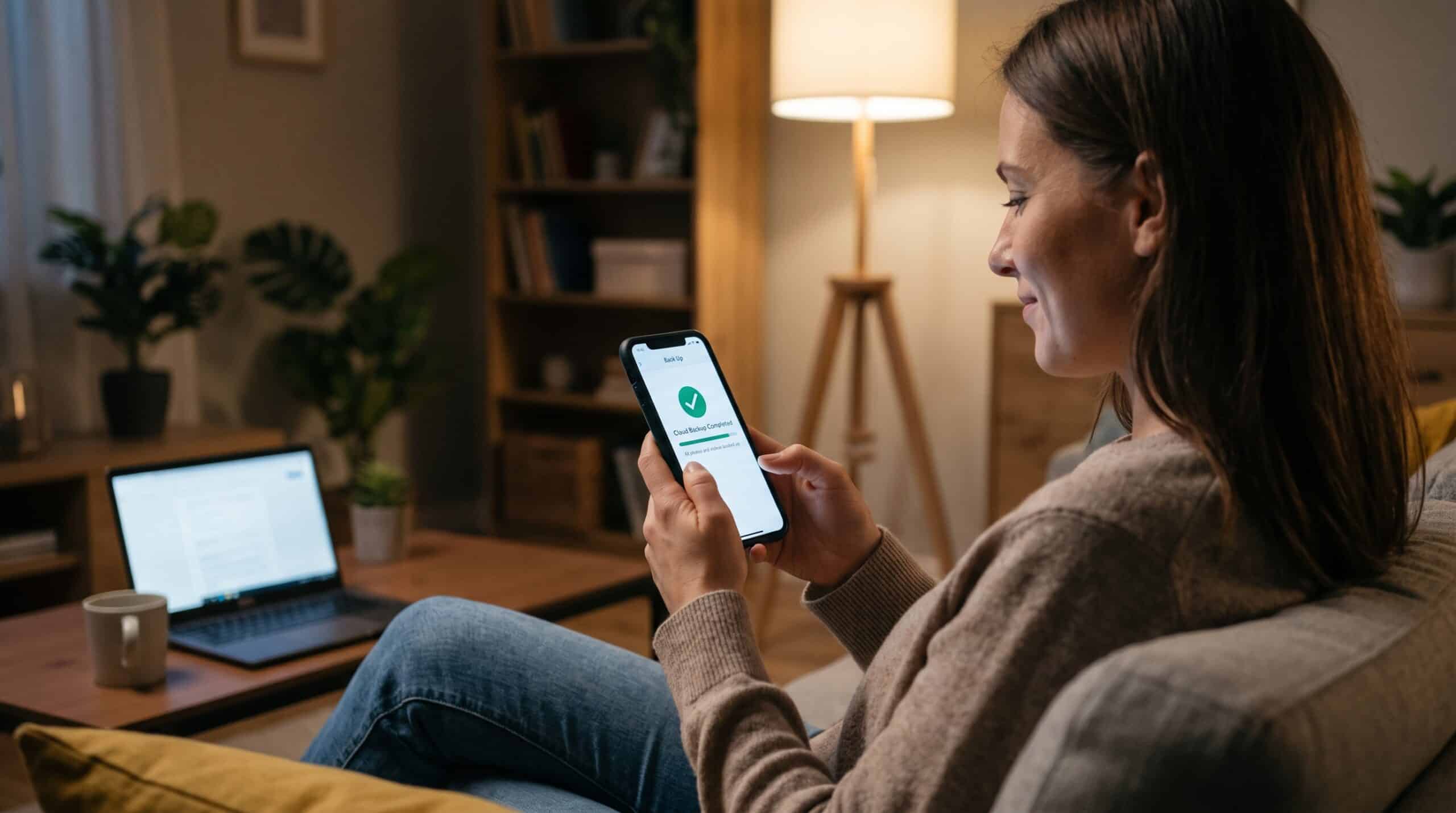
I’ve spent more than a decade behind a repair bench and a help desk, and I can tell you which moment hurts most in this job. It’s not a shattered screen or a phone that won’t power on. It’s when someone slides a dead device across the counter and asks, very quietly, “Can you get my pictures back?”
Sometimes I can. A lot of the time I can’t. The board is fried, the phone went into a lake, or a thief grabbed it at a bus stop and it never came home. In almost every one of those cases, the owner didn’t lose the photos when the phone died. They lost them months earlier, on the day they decided backups could wait.
So this guide is the talk I wish I could give everyone before they end up at my counter. I’ll walk you through how to back up your phone properly, whether you carry an iPhone, a Samsung Galaxy, a Pixel, or any other Android device. I’ll also explain the mistakes I see over and over, because knowing what trips people up matters just as much as knowing which button to tap.
Why “My Photos Are in the Cloud” Isn’t a Real Phone Backup
Before we get into settings, I need to clear up the most common misunderstanding I deal with. People mix up syncing and backing up, and they are two different things.
Syncing keeps the same copy of something on all your devices. Change it in one place and it changes everywhere. That’s handy, but it also means that if you delete a photo on your phone, the delete syncs too, and the photo disappears from your tablet and laptop as well.
A backup is a separate copy that lives somewhere else, usually frozen at a point in time. If something on the phone goes wrong, the backup stays put.
How Apple and Google Back Up Your Phone
Apple actually describes iCloud as protecting your data in two ways: syncing and backing up. When you turn on iCloud Photos, your photos and videos sync to iCloud, and because of that, your daily iCloud Backup leaves them out. Plenty of customers have told me “I have iCloud Backup on, so my photos are safe,” without knowing their photos live in an entirely different service with its own settings and storage limits.
Android works in a similar way. Google’s Android help pages say Google erases the backup data on your account, apart from anything in Google Photos, if you don’t use your device for 57 days or if you switch Android backup off. That’s not a reason to panic. It’s a reason to understand what goes where.
Keep that distinction in mind and everything below will make more sense.
The 321 Rule: How to Back Up Your Phone the Way IT Pros Do
IT people follow a simple rule for protecting data, and it works just as well for a phone full of family photos as it does for a company server. Most of us call it the 321 backup rule:
- Keep three copies of your data: the original plus two backups.
- Store them on two different kinds of storage, so a single failure can’t take out both.
- Keep one copy off site, out of reach of a fire, flood, or burglary at home.
For a phone, that might mean the photos on the device itself, a copy in a cloud service like iCloud or Google Photos, and a third copy on your computer or an external drive. Backblaze, which has written about this approach for years, points out that no backup system is perfect, but this one gives most people a great starting point.
CISA’s Advice Applies When You Back Up Your Phone
The Cybersecurity and Infrastructure Security Agency (CISA) gives similar advice to small businesses: back up automatically and regularly, use both onsite and remote methods, and test the backup before you actually need it. That last part is the one nobody does, and I’ll come back to it.
You don’t have to set up all three copies today. Even one working backup puts you ahead of most of the people I see at the bench. But aim for all three over time.
How to Back Up Your Phone: iPhone Edition
Apple gives you two main ways to back up an iPhone, and I recommend using both.
Option 1: iCloud Backup (Automatic, Wireless)
This is the “set it and forget it” option, and it’s where I start with every iPhone owner.
- Open Settings and tap your name at the top.
- Tap iCloud, then iCloud Backup.
- Turn on Back Up This iPhone.
From then on, your iPhone backs itself up whenever it’s charging, locked, and on WiFi, which for most people means overnight on the nightstand.
If you want a backup right now, say before a software update or before you hand the phone in for repair, tap Back Up Now on the same screen. Stay on WiFi until it finishes. Underneath the button you’ll see the date and time of your last successful backup. Make a habit of checking that timestamp now and then. If it says three weeks ago, something is wrong, and the usual culprit is a full iCloud storage plan.
Watch Your iCloud Storage
That brings me to the catch. Apple’s free iCloud tier is small, and a phone full of 4K videos will blow past it fast. If a warning tells you there isn’t enough space, you can either upgrade your plan or trim the backup. Apple’s own guidance suggests you stop backing up apps you no longer use, or delete old backups from devices you don’t own anymore.
Option 2: iCloud Photos (For the Pictures Themselves)
Because iCloud Photos handles your pictures separately, check it too. Go to Settings, tap your name, then iCloud, then Photos, and make sure syncing is on.
To confirm it works, sign in at icloud.com on a computer and open Photos. If your recent shots show up there, they’ve made it to Apple’s servers. Just remember what I said earlier: this is sync, not a frozen backup. If you delete a photo, it vanishes everywhere once the Recently Deleted album empties itself. That’s why I always push people toward a second copy.
Option 3: Back Up Your Phone to a Mac or PC
Most people skip this step, and it’s the one that has saved more of my customers than anything else. A computer backup costs nothing beyond the drive space you already have, it doesn’t depend on a monthly subscription, and it sits on a machine you physically control.
On a Mac, connect the iPhone with a cable and open Finder. Select your phone in the sidebar. On a Windows PC, open the Apple Devices app (older setups use iTunes). Tap Trust on the phone if it asks, enter your passcode, and choose the option to back up all of the data on your iPhone to the computer.
Encrypt When You Back Up Your Phone to a Computer
Here’s a tip that separates a decent backup from a great one: tick the box that says Encrypt local backup. An encrypted backup keeps data that a regular local backup leaves out, including your Health and Activity data. Apple makes one point very clear, and I’ll repeat it because I’ve watched people get burned by it: write that password down and keep it somewhere safe, because nobody can recover an encrypted backup without it. I tell customers to store it in a password manager the same day.
Then click Back Up Now and let it finish. The first run can take a while if you have a big photo library, and an old, cluttered machine makes it slower still, so it can pay to speed up your computer first. Later backups go faster.
How to Back Up Your Phone: Android Edition
Android gets a little messier simply because so many manufacturers make Android phones, and each one moves the menus around. The basics stay the same, though.
Option 1: Google Backup (Device Data and Settings)
Google’s built in backup saves your app data, call history, contacts, device settings, and text messages to your Google Account. On most recent phones:
- Open the Settings app.
- Tap Google, then All services.
- Under Backup and restore, tap Backup, then Back up now.
If it’s your first time, Google will ask you to turn on Backup by Google One and walk you through it. Google says this first backup can take up to 24 hours, and once it saves your data you’ll see “On” below each data type you selected. If your phone’s menus don’t match these steps, just type “backup” into the search bar at the top of Settings. That trick works on nearly every Android phone I’ve touched.
Limits of Google Backup
Google’s own documentation flags two points that matter. First, not every app supports backup, so some games and banking apps may not restore their data on a new phone. Second, you can’t restore a backup from a newer version of Android onto a phone running an older one. That catches people out when they downgrade to a cheaper spare phone after a breakage.
Google also recommends protecting your backup with a PIN, pattern, or password screen lock instead of a simple swipe. Google uses that screen lock to add a further layer of encryption to some backed up data, so a proper lock makes your backup safer too.
Option 2: Google Photos (For Pictures and Videos)
For photos, Google Photos does the heavy lifting on Android, and it works on iPhone too. Open the app, tap your profile picture in the top right, go into Photos settings, then Backup, and switch it on.
Don’t Forget Your Other Photo Folders
Now here’s the part I really want you to read, because this is where I find holes in people’s setups all the time. By default, Google Photos focuses on your camera folder. But your phone holds photos in other places too: screenshots, downloads, and pictures people send you through WhatsApp or other chat apps. Inside the backup settings, look for Back up device folders and turn on the folders you care about. I’ve had grandparents lose years of grandkid photos that arrived through a messaging app, purely because nobody ever switched that folder on.
Google Photos Tips Worth Knowing
Google’s help pages share a few other details worth knowing:
- You can back up photos and videos to only one Google Account at a time, so make sure you pick the right account. I see families where a parent’s phone backs up to a child’s old school account.
- To confirm your backup, go to photos.google.com on a computer. Google states plainly that every photo and video you find there has a backup.
- If you use Google Photos on an iPhone, don’t force close the app while it’s backing up.
- If backups keep stalling on Android, check the app’s battery setting. Google suggests setting battery usage for Photos to Unrestricted so the phone doesn’t kill the upload in the background.
Option 3: Back Up Your Samsung Phone With Smart Switch
If you own a Samsung, you have an extra tool that a lot of people never touch. Smart Switch can back up your phone data to a PC, an SD card, or USB storage, and restore it later. On a computer, download Smart Switch from Samsung’s website, connect your Galaxy with its USB cable, and choose Back up. It grabs contacts, messages, call logs, photos, calendar events, Samsung Notes, and more.
Samsung also suggests you clean up SD card backups from time to time so you keep only the latest one, and it notes that USB backups can pile up multiple files over time. Keep an eye on your storage.
How to Back Up Your Phone If It Isn’t a Samsung
For non Samsung Android phones, the simplest local option is plugging the phone into a computer with a USB cable, choosing file transfer mode, and copying the DCIM and Pictures folders to your computer or an external drive. It’s not elegant, but it works, and it gives you that all important second copy.
Mistakes People Make When They Back Up Their Phone
After years of watching backups fail, I can name the usual suspects without thinking.
Full Cloud Storage
The backup worked fine until the free storage filled up, and then it silently stopped. The phone might show a small warning that the owner dismisses and forgets. Check your last backup date once a month.
The Wrong Account
I regularly find backups going to an old email address the owner can no longer sign in to. Before you rely on any backup, make sure you can actually sign in to the account behind it, and that you’ve set up two factor authentication with a phone number or recovery method you still control. Those same steps help protect your privacy online too.
Trusting Sync as a Backup
I’ve covered this, but it bears repeating. Sync protects you from a broken phone. It does not protect you from an accidental delete, a hacked account, or a toddler who discovers the Select All button.
Never Testing
CISA tells businesses to test their backup strategy before they need it, and that advice applies to your phone too. You don’t need to wipe your phone to test. Just open icloud.com or photos.google.com on a computer, pick a random photo from six months ago, and download it. If it opens, your backup is real. If you can’t find it, you just found the problem on a calm Tuesday instead of on the worst day of your year.
Waiting Too Long to Back Up Your Phone
People bring me phones that reboot on their own, have swelling batteries, or have cracked screens leaking color, and ask me to back them up. Sometimes the phone has enough life left. Sometimes it doesn’t. Back up while the phone is healthy, and if you keep putting it off, a few tricks to stop procrastinating can get you over the hump.
How I Back Up My Own Phone
People always ask me what I do with my own phone, so here it is, plain and simple.
My phone backs up to the cloud every night automatically. My photos sync to a cloud photo service. Once a month, on the first Sunday, I plug the phone into my computer and run a full local backup, and that computer itself backs up to an external drive I keep in a different room, plus an off site cloud backup service. That covers three copies, two kinds of storage, and one copy away from home, and it takes me about five minutes a month of actual effort.
A Simple Plan to Back Up Your Phone
For most people, I suggest a lighter version:
- Turn on automatic cloud backup for your device (iCloud Backup or Google Backup).
- Turn on cloud photo backup (iCloud Photos or Google Photos), and check every folder that matters.
- Once a month, or before any big trip, update, or repair, plug the phone into a computer and make a local copy.
- Every few months, pick a random old photo and confirm you can open it from your backup.
If that’s all you do, you’re very unlikely to ever be the person at my counter asking the question I hate to answer.
Back Up Your Phone Before Any Repair
One last practical note from the repair side. Whenever you take your phone in for service, back it up first. Even a simple screen replacement can sometimes turn into a full reset if a technician runs into something unexpected, and most repair shops, mine included, will ask you to sign a form that warns about possible data loss. A fresh backup from the night before turns that scary bit of paperwork into something you don’t need to worry about.
The same goes for trading in or selling an old phone. Back up, confirm you can see your photos on the new device or in the cloud, and only then erase the old one.
Final Thoughts
Learning how to back up your phone isn’t complicated, and it doesn’t require any special gear. It takes about fifteen minutes to set up properly and a few minutes a month to keep it honest. You can replace the phone itself. You can walk into a store and buy a new one this afternoon. The photo of your dad laughing at your wedding, the first video of your kid walking, the vacation shots from a trip you’ll never take again: no technician can rebuild those from nothing.
So do it tonight. Plug your phone in, open your settings, and check that last backup date. If it’s recent, great, now go set up that second copy. If it’s not, you just found out at the best possible time.
Frequently Asked Questions
How often should I back up my phone?
Automatic cloud backups should run daily, which they will if your phone charges on WiFi overnight. Add a manual computer backup at least once a month and before any software update or repair. Apple explains the automatic process in its guide to backing up your iPhone with iCloud.
Does iCloud Backup include my photos?
Only if you turn iCloud Photos off. When iCloud Photos is on, your photos sync to iCloud separately and iCloud Backup skips them. Apple lays out exactly what it covers in What does iCloud back up?
How do I back up an Android phone to Google?
Open Settings, tap Google, then All services, then Backup, and choose Back up now. The exact menu names can differ by brand. Google’s full steps live in Back up or restore data on your Android device.
Why are some of my photos not backing up to Google Photos?
Usually because you haven’t switched on the folder they sit in, such as WhatsApp or Screenshots, under Back up device folders, or because battery settings restrict the app. Google covers the fixes in My photos aren’t backing up.
Is it safe to back up my phone to my computer?
Yes, and it makes a smart second copy. On an iPhone, turn on Encrypt local backup to protect the data with a password and include Health and Activity data, but store that password safely because nobody can recover it for you. Apple explains the details in About encrypted backups on your iPhone.
Can I back up a Samsung phone without the cloud?
Yes. Samsung Smart Switch can back up your Galaxy to a PC, an SD card, or USB storage. See Samsung’s guide on how to back up Samsung data using Smart Switch.
What is the 321 backup rule?
It means you keep three copies of your data on two different types of storage, with one copy off site. Backblaze gives a clear explanation in The 321 Backup Strategy of Data Protection.
Will Google ever delete my Android backup automatically?
Yes. Google says it erases backup data, apart from what’s in Google Photos, if you don’t use the device for 57 days or if you turn backup off. You’ll find the details on Google’s Android backup help page.
References
- Apple Support. How to back up your iPhone or iPad with iCloud
- Apple Support. What does iCloud back up?
- Apple Support. How to back up your iPhone, iPad, or iPod touch with Windows
- Apple Support. About encrypted backups on your iPhone, iPad, or iPod touch
- Google Android Help. Back up or restore data on your Android device
- Google Photos Help. Back up photos and videos
- Google Photos Help. My photos aren’t backing up
- Google Photos Help. Check your backup
- Samsung Support. How to back up Samsung data using Smart Switch
- Backblaze. The 321 Backup Strategy of Data Protection
- CISA. Cyber Essentials Toolkit: Your Data
- CISA. Data Backup Options